ERPNext Walkthroughs Reports
Transaction History: everything about an item on one screen
Look up any item's purchases, sales, open orders and stock movements in one place, with the Transaction History page.
Step 1 of 8
Open Transaction History
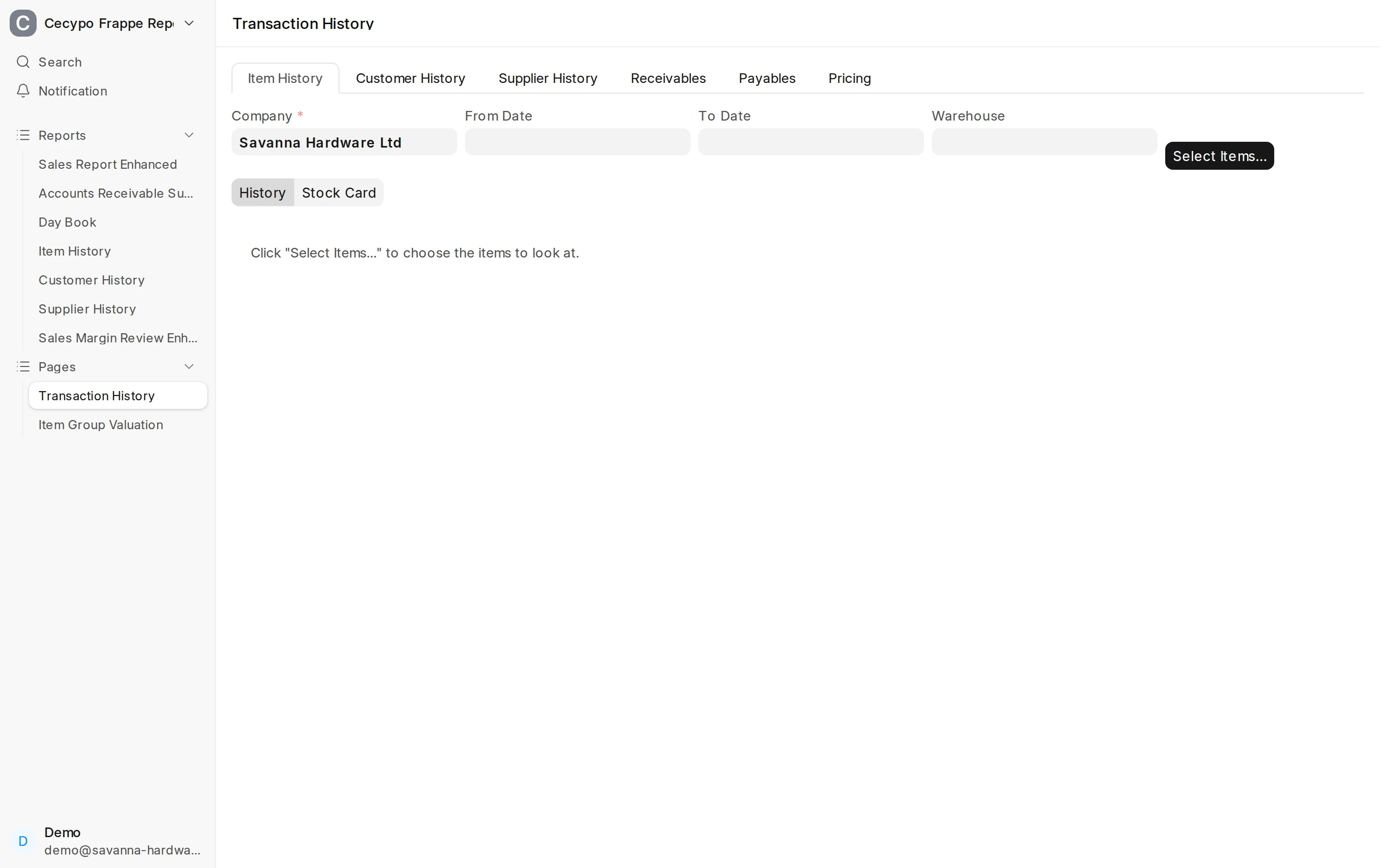
Open the page Transaction History. Its tabs cover items, customers, suppliers, receivables, payables and pricing. This walkthrough covers Item History.
Arrow keys or space also move through the steps.
Steps
-
Open the page Transaction History. Its tabs cover items, customers, suppliers, receivables, payables and pricing. This walkthrough covers Item History.
-
Choose the Company. Leave the dates empty to see all history, or set a From Date and To Date. A Warehouse narrows everything to one store. Changing a filter reloads the items you have open.
-
Click Select Items… and type at least two letters of an item code or name, or choose an Item Group. Each row shows the selling price, the stock in every warehouse and, for users who may see it, the cost. Clicking a warehouse's stock opens that item's stock card for that warehouse.
-
Tick each item you want to look at. Your ticks stay when you search again, so you can collect several items, then click Use selected.
-
History shows the item's details, its stock (and its value, for users who may see cost), and pending orders at the top. Below, its Purchases and Sales sit side by side, with open purchase and sales orders under them.
-
The arrows and the item list switch between the items you picked. Type in the filter box to keep only the rows that contain that text, for example one customer.
-
Stock Card lists every stock movement of the item: date, voucher, party, qty in, qty out and the running balance. Users who may read the stock ledger also see the cost rate and the stock value.
-
The download icon above a table saves that table to Excel, as it is shown.