ERPNext Walkthroughs Selling
KRA PIN checks: duplicates and the name from KRA
PowerPack warns before a second customer gets a Tax ID that is already used, and the KRA PIN checker fills in a walk-in buyer's registered name from the PIN, at the till and on the desk.
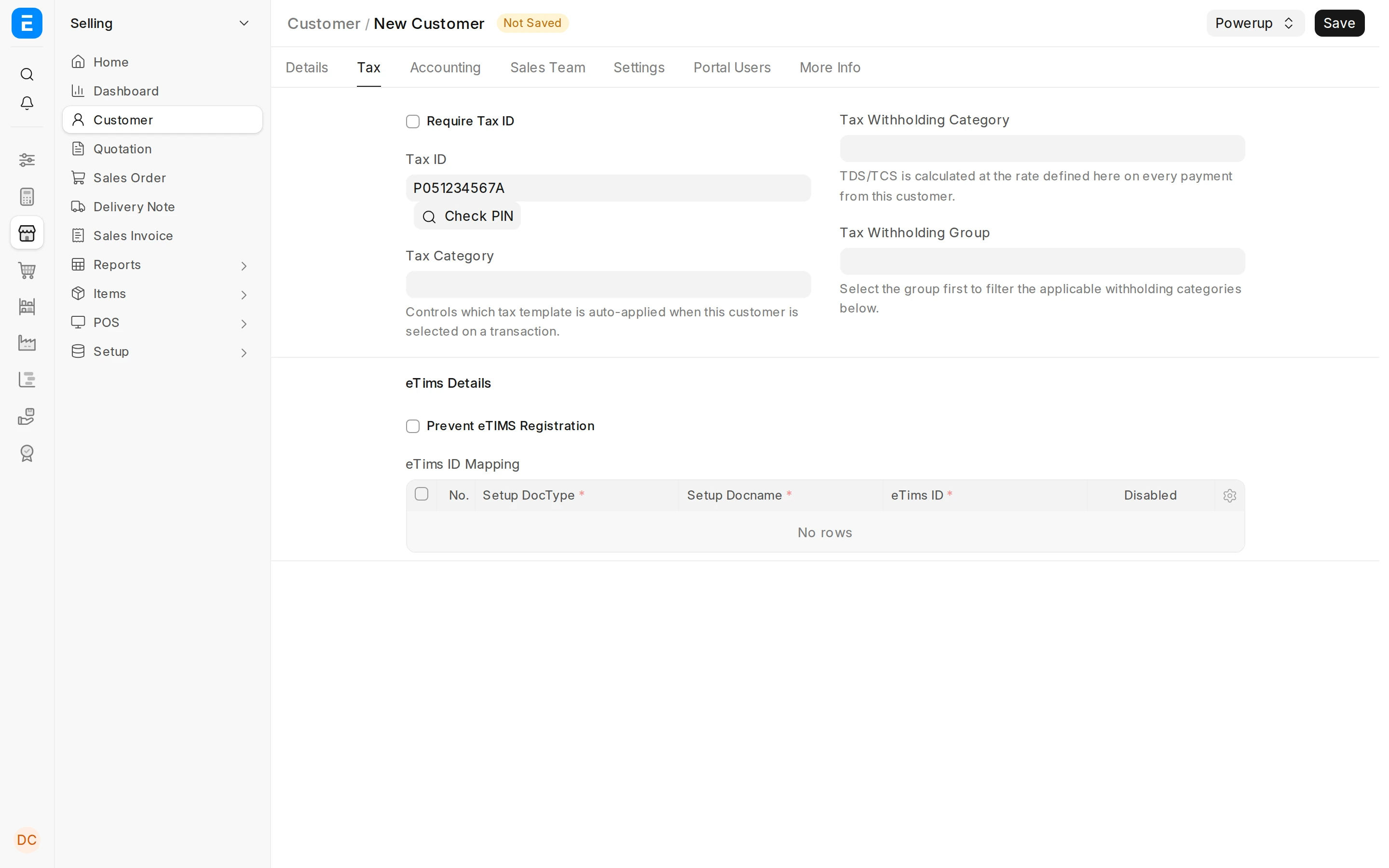
Step 1 of 10
Check a PIN with KRA
On a new Customer, the Tax tab has Check PIN beside the Tax ID. Click it to ask KRA about the PIN typed there.
Arrow keys or space also move through the steps.
Steps
-
On a new Customer, the Tax tab has Check PIN beside the Tax ID. Click it to ask KRA about the PIN typed there.
-
KRA does not know this PIN, so the result says Invalid PIN. Fix it before you save the customer.
-
Now type a Tax ID that another customer already uses.
-
Press Save (or Ctrl+S).
-
Before anything is saved, a warning lists the customers that already use this Tax ID. Save Anyway keeps both, for one business under two names; Cancel saves nothing so you can fix the Tax ID.
-
In KLiK POS, open the customer box at the top of the cart.
-
Pick Walk In, the customer for buyers without an account.
-
Open Additional Info (F4) to add the buyer's details to this sale.
-
Type the buyer's KRA PIN in Tax ID. When you leave the box, or click the search icon beside the label, KRA's registered name fills Name.
-
On a Sales Invoice for Walk In, type the PIN in Walk-in Tax ID and Walk-in Customer Name fills in from KRA. When you save, the PIN becomes the invoice's Tax Id.