Returns and store credit
Return a cash sale and an M-Pesa sale from invoice history and see what happens to the money, then pay a new sale with the credit note by entering its voucher numbers.
Step 1 of 14
Open Invoice History
Returns start from Invoice History, the receipt icon in the left bar. Sales from the other tills show here too, so you can return them from your till.
Arrow keys or space also move through the steps.
Steps
-
Returns start from Invoice History, the receipt icon in the left bar. Sales from the other tills show here too, so you can return them from your till.
-
Find the sale, here by customer name, and click Return on its row. This customer paid in cash.
-
Every item starts fully selected. Use the minus and plus buttons under Return Qty to take back only some, or Clear All and start again.
-
The customer paid cash, so Payment Method for Return offers Cash and the amount field beside it is the money you hand back from the drawer. Nothing stays pending. Process Return would make the return; this guide stops here.
-
Leave this one with Cancel, find the M-Pesa sale and click Return on its row.
-
No cash was kept from an M-Pesa or bank sale, so there is nothing to hand back at the till. The box Credit note - no cash refund says the amount stays with the customer as credit. Accounts refund card or M-Pesa money separately.
-
A customer with store credit comes back to spend it. Leave the return with Cancel, go to POS and open the customer box at the top of the cart.
-
Type part of the name and click the customer. Store credit belongs to one customer, so choose the one the credit note was issued to.
-
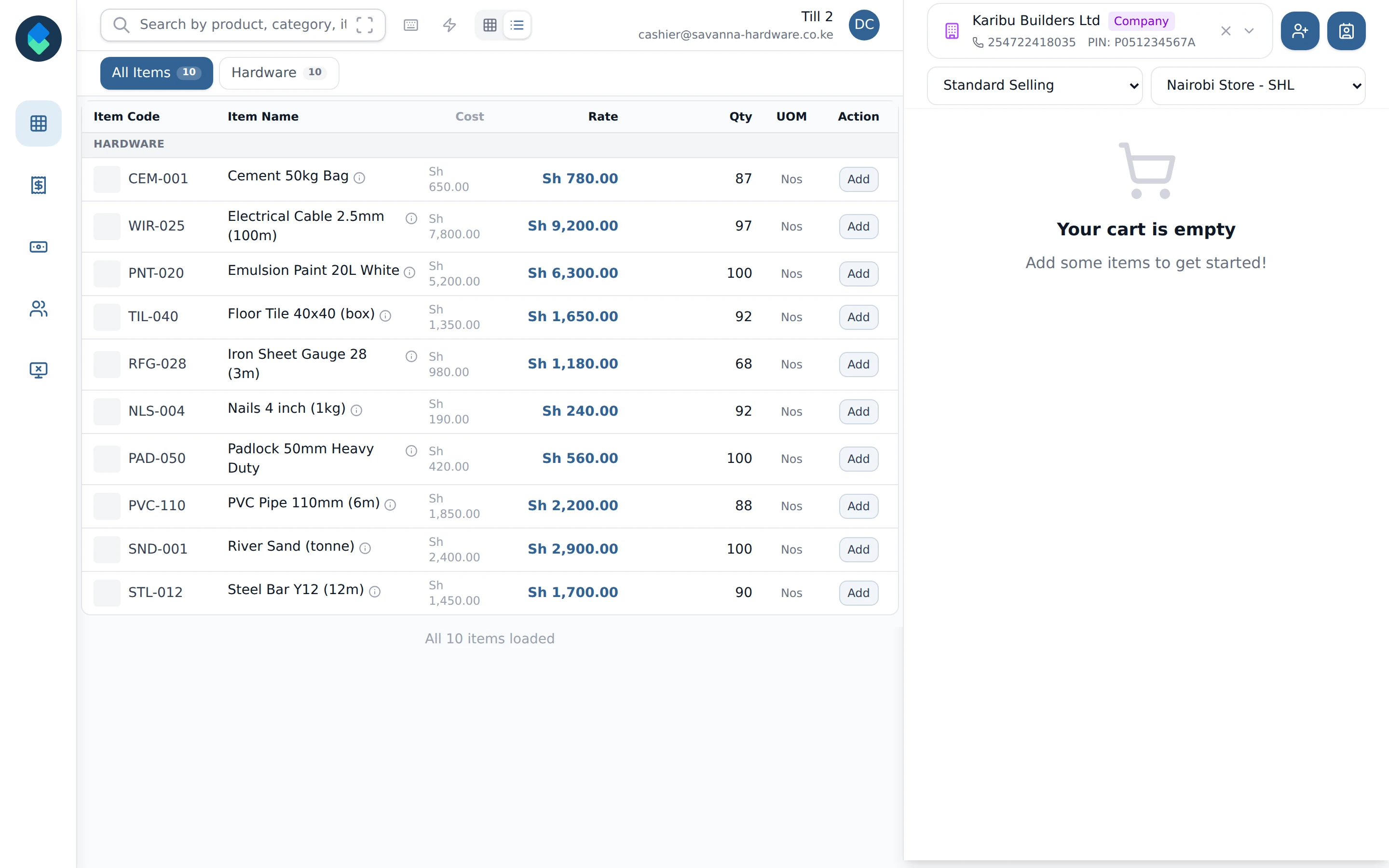
Click an item to put it in the cart, then click Checkout.
-
Click Voucher to pay with store credit.
-
Type the Credit note no. and the Original sale no.. Both are printed on the return receipt, and both are needed to use the voucher.
-
Click Check voucher. KLiK looks the credit note up and shows what is left on it.
-
The credit belongs to this customer, so click Apply to use it on the sale. The panel on the right also lists this customer's open credit with its own Apply. The two number boxes in the Vouchers panel are for a voucher presented by number, as on the return receipt.
-
The voucher now shows under Applied to this sale, and Applied at the top shows how much of it the sale uses. KLiK takes only what the sale needs, so Cash drops to nothing and the rest stays on the credit note for next time. The sale is not finished until you click Submit.