Closing the day on KLiK POS
Count each payment mode against what KLiK expects, choose how much cash goes to the bank, and close the shift.
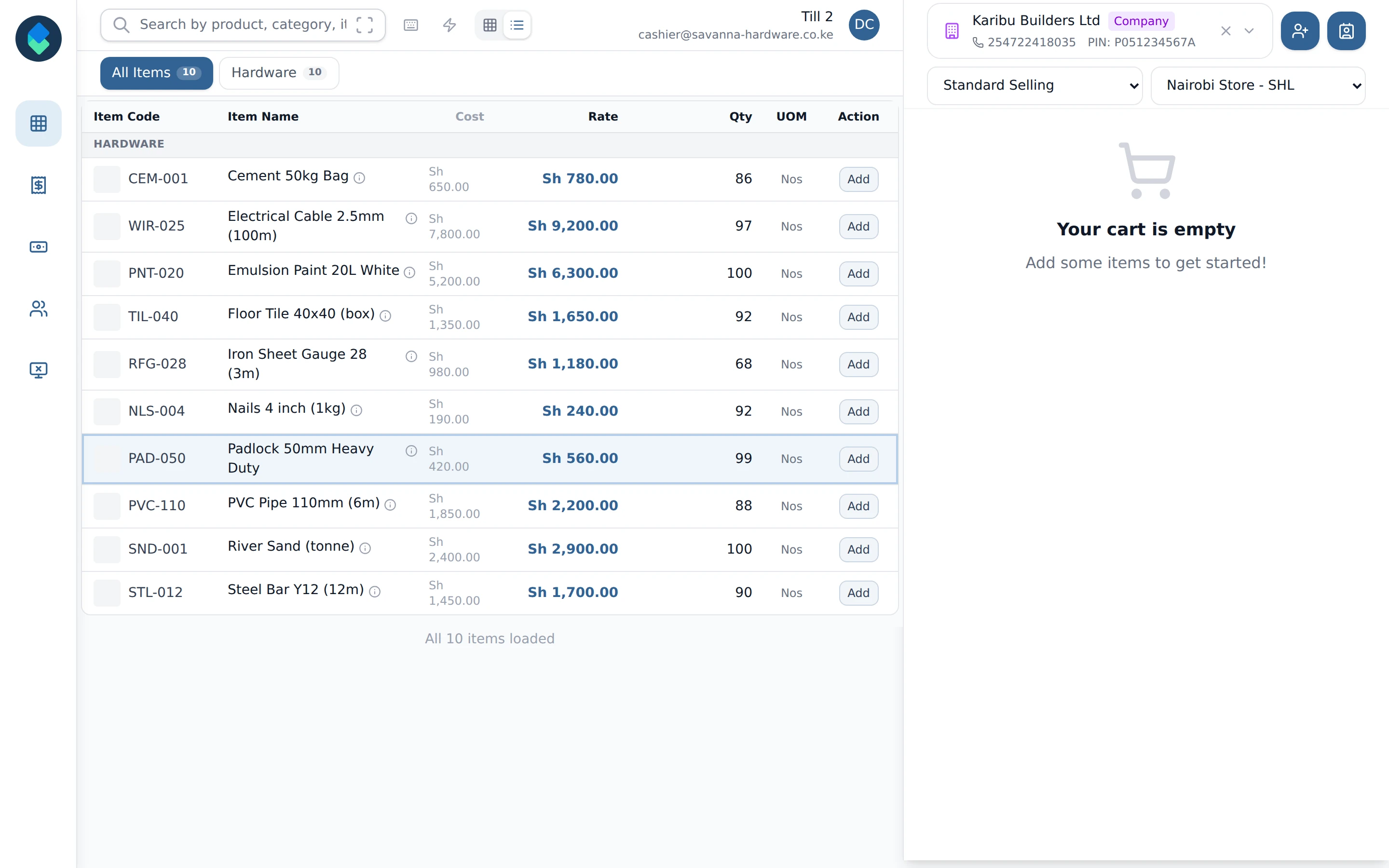
Step 1 of 11
Open Closing Shift
At the end of the day, click the screen icon with an X, last in the left bar. It opens Closing Shift.
Arrow keys or space also move through the steps.
Steps
-
At the end of the day, click the screen icon with an X, last in the left bar. It opens Closing Shift.
-
The ? next to the Closing Shift heading opens this guide in a new tab.
-
Each card is a payment mode, with its share of the total and the amount KLiK expects in it: the opening float plus what the shift took.
-
Click Close Shift at the top right to open the counting box.
-
Opening is the float the shift started with, Expected is what KLiK says should be there, and Counted is yours to fill in. The small ×number beside a mode is how many payments used it (a sale's small round-off can count under Cash too).
-
Count the cash in the drawer and type the total in Counted for Cash. When it matches Expected, the Variance shows zero in green.
-
Count the other modes the same way. Here Bank is counted 50 short, so its Variance turns red. A difference does not stop you closing.
-
Cash has a second line, To bank: the part of the count you are handing over for banking. Left shows what stays in the drawer as the float for the next shift.
-
If To bank is more than Counted, the box turns red and says That is more than was counted. Close Shift stays greyed out until you correct it.
-
Put To bank right again and click Close Shift in the box. This files the closing entry and ends the shift for everyone in this shift.
-
KLiK goes back to the selling screen and asks for a new POS Opening Entry. Its Cash line is already filled with what was left in the drawer.