ERPNext Walkthroughs Buying
Buy from a supplier: purchase order to invoice
Order goods from a supplier, record their arrival in a store, and book the supplier's bill, with each document built from the one before.
Step 1 of 13
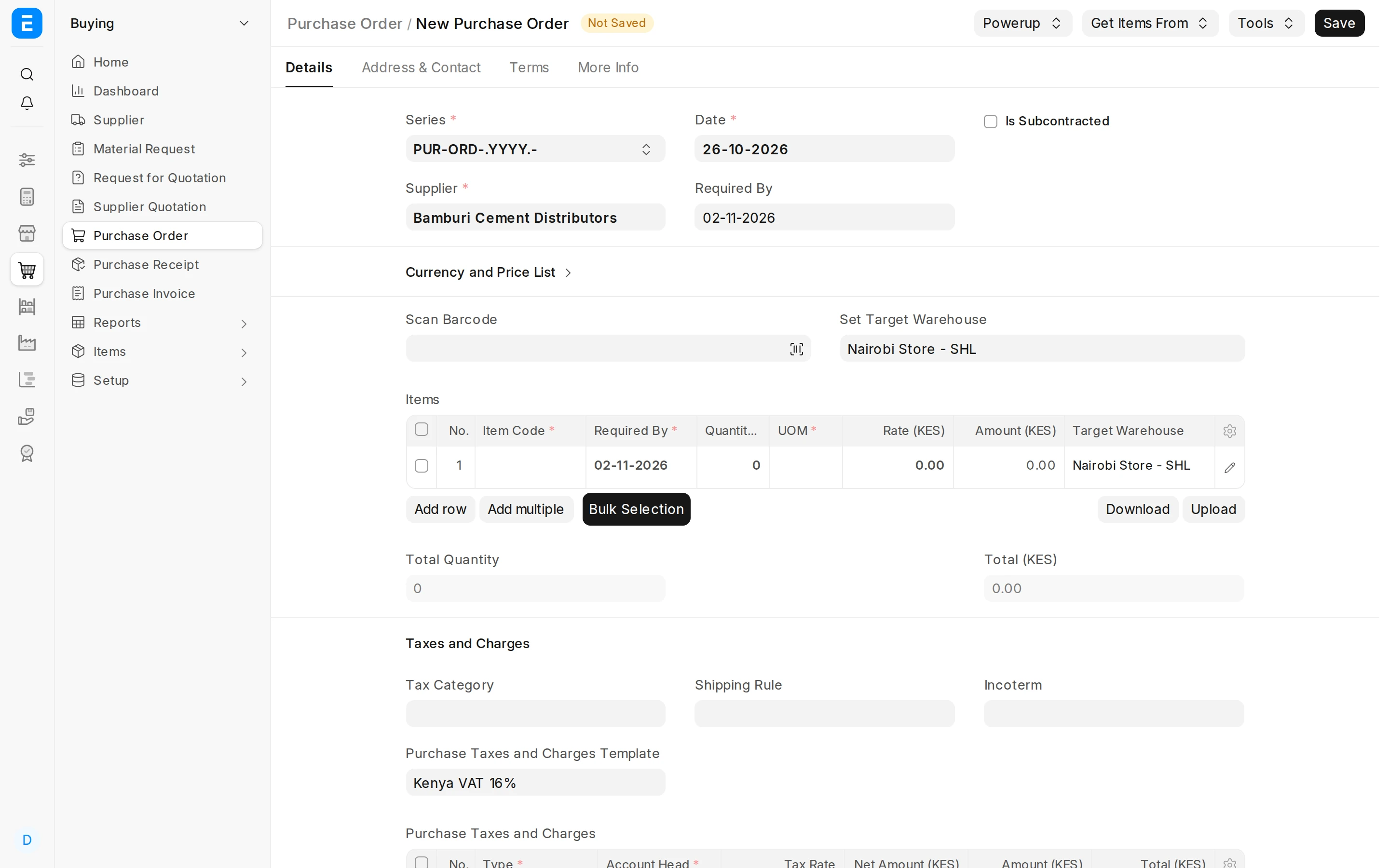
Start a purchase order
Open a new Purchase Order. Pick the Supplier and, in Set Target Warehouse, the store the goods should arrive in.
Arrow keys or space also move through the steps.
Steps
-
Open a new Purchase Order. Pick the Supplier and, in Set Target Warehouse, the store the goods should arrive in.
-
Add the items and quantities in the Items table. The rate comes from the buying price list, and the row total follows from quantity and rate.
-
Save with Ctrl+S. The order is still a Draft: nothing is promised to the supplier yet.
-
Click Submit and confirm. The order is now binding and shows what is still waiting: To Receive and Bill.
-
Goods have arrived. On the order, click Create then Purchase Receipt. It copies the supplier, items and quantities from the order, so you only record what actually arrived.
-
The items, quantities and the store are already filled in from the order. Change a quantity here if the delivery was short.
-
Click Submit and confirm. Submitting the receipt is what adds the goods to the stock of that store.
-
Now the supplier's bill. Click Create to start the invoice from the receipt, so you bill for what you received.
-
Copy the supplier's own Supplier Invoice No and Supplier Invoice Date from their paper invoice, so the bill can be matched to it later.
-
Save, then click Submit. Submitting books the payable: the amount you now owe the supplier.
-
On the Purchase Order's More Info tab, % Received and % Billed show how much of the order has arrived and been billed.
-
Click the Connections tab to see the documents tied to this order.
-
The receipt and the invoice you created from the order are listed here, so you can open either one from the order.