ERPNext Walkthroughs Selling
Copy a document as an image or a message
Send a quotation, order or invoice on WhatsApp in one click: copy the print as a picture or a short message with a link, from the Powerup menu on the form and on the print preview.
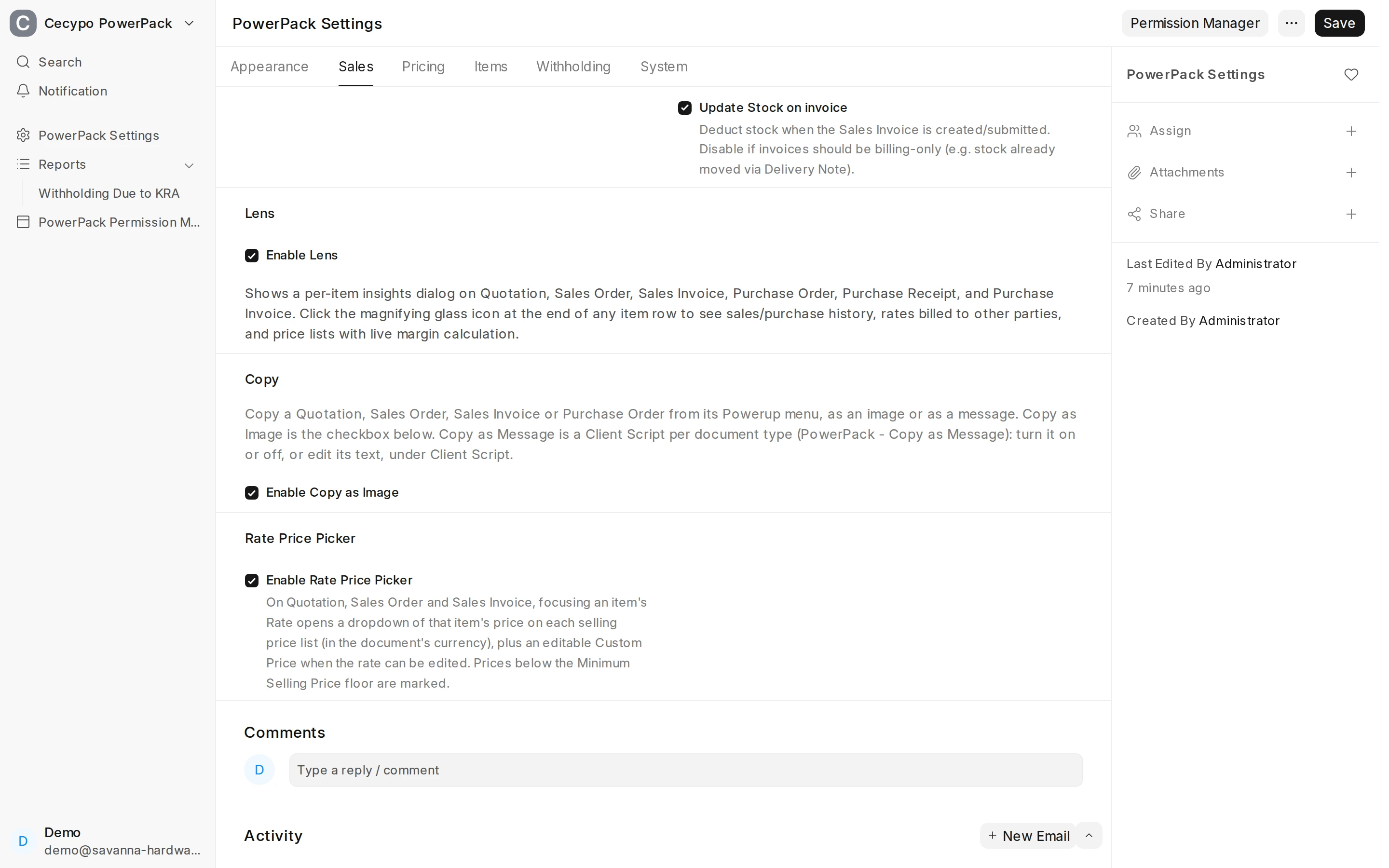
Step 1 of 8
Switch on Copy as Image
In the Copy section of the Sales tab in PowerPack Settings, tick Enable Copy as Image. That box controls the image only. Copy as Message has no box here: it is a Client Script for each document type, switched on or off, or edited, under Client Script (shown further on).
Arrow keys or space also move through the steps.
Steps
-
In the Copy section of the Sales tab in PowerPack Settings, tick Enable Copy as Image. That box controls the image only. Copy as Message has no box here: it is a Client Script for each document type, switched on or off, or edited, under Client Script (shown further on).
-
On a saved Quotation, Sales Order, Sales Invoice or Purchase Order, the Powerup menu in the top bar now holds Copy as Image and Copy as Message. They do not appear on a new or a cancelled document. Click Copy as Image.
-
A green Image copied notice confirms it. The server renders the document's print, the same PDF the PDF button makes, into one tall picture, and your browser puts it on the clipboard, ready to paste into WhatsApp or any chat. The picture shows the saved version, so an unsaved change must be saved first. The panel with the picture is not part of ERPNext: this guide reads the clipboard back to show what was copied.
-
Copy as Message copies a short text instead. Click it.
-
A green Message copied notice confirms it, and the text is ready to paste into WhatsApp, SMS or email: the customer, the document and its date, the valid-till date and the total, then a link. Anyone who has the link can open the document without logging in. Again the panel is only this guide reading the clipboard back.
-
The print preview has the same Powerup menu. There, Copy as Image uses the print format, letterhead and language chosen in the sidebar, and sends the sidebar's print options, so the picture matches what you see. Copy as Message is offered too, as long as the site's script for that document type is on.
-
Under Client Script, PowerPack keeps one Copy as Message script for each of the four document types. Each can be switched off, or changed, on its own. They belong to your site: PowerPack creates them once and does not overwrite your edits.
-
Untick Enabled to switch this one off. The message is built in the Script, so you can change its wording or fill in the payment details block (bank, account or paybill) that goes at the end of the message.