ERPNext Walkthroughs Selling
PowerPack tour: faster selling, buying and pricing
PowerPack adds shortcuts to ERPNext: fill a sales order from a list, pick a price per line, take payment on the order, set selling prices while you buy, search items by any words and reprice many items at once.
Step 1 of 17
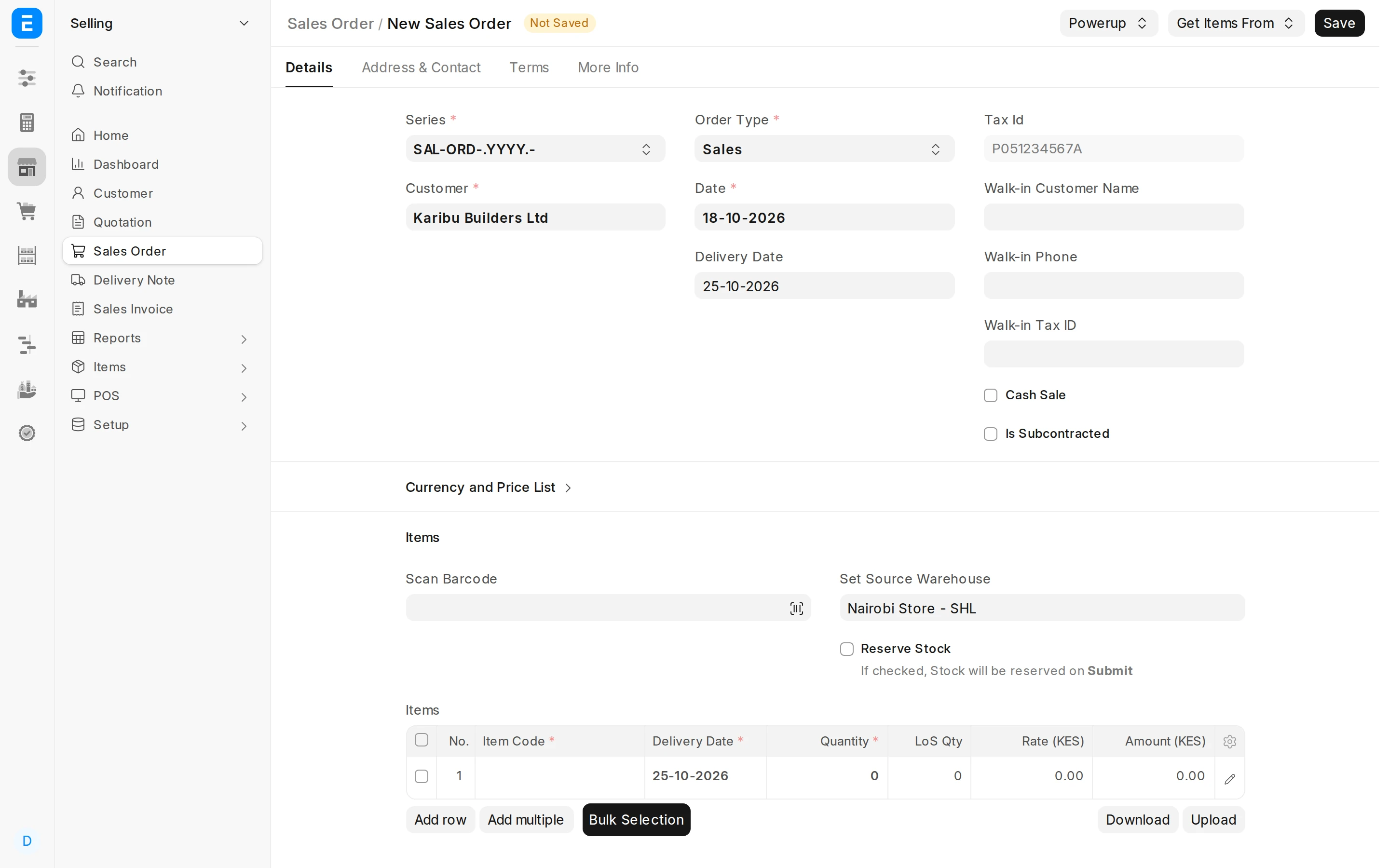
Bulk Selection on a Sales Order
On a new Sales Order, choose the customer and the warehouse. PowerPack adds a Bulk Selection button beside Add multiple under the Items table; it stays greyed out until both are chosen. Click it.
Arrow keys or space also move through the steps.
Steps
-
On a new Sales Order, choose the customer and the warehouse. PowerPack adds a Bulk Selection button beside Add multiple under the Items table; it stays greyed out until both are chosen. Click it.
-
The dialog lists the items with their cost, selling price and the stock in that warehouse. Use the search box with words in any order, or % as a wildcard, then type a quantity against each item you want.
-
The bar at the foot totals the quantity and the sale, and shows the cost and profit to users who are allowed to see cost. Click Add Selected to put every item you gave a quantity on the order.
-
The three items are now rows of the order, each with its price from the selling price list. Click the Rate cell of a row.
-
The Rate Price Picker opens at the cell: the item's price on each selling price list, and a Custom Price box for your own figure. Click a line and the row is repriced; nothing is saved until you save the order.
-
On a submitted order that has not been invoiced yet, Quick Pay appears under Actions. Click it to take payment against the order.
-
The summary at the top shows the grand total, what is already paid and what is outstanding. Add a payment with one of the buttons below; this company has Cash and Bank. Click Cash.
-
The payment line starts at the whole outstanding amount, which you can change. Invoice and Auto-submit start as set in PowerPack Settings and decide whether an invoice is raised and submitted with the payment. Click Process Payments.
-
A message lists the payment it recorded against the order and, because the options were on, the Sales Invoice it raised and submitted.
-
On a new Purchase Order, type a few words into the Item Code cell, in any order. PowerPack's item search needs every word to match somewhere in the code, name, group or barcode, so 110 pipe finds the PVC pipe. % works as a wildcard.
-
Each row with an item gets a small magnifying glass icon, just left of the pencil at the end of the row (it shows when the mouse is over the row). Click it to open Lens.
-
Lens shows the item's stock and purchase history, then the Price Lists that already price it, with the margin against cost. The small + at the right of that header lists the selling price lists that do not price it yet. Click it.
-
Choose a list and it is added as a new row. Type the selling price, watch New Margin follow, then click Save Prices to create the price without leaving the purchase order.
-
In the Item list, tick the items you want to reprice, then open the Powerup menu in the top bar.
-
Click Bulk Price Update in the menu.
-
Choose the buying price list that holds your cost and the selling price list to fill, then Markup or Margin, a percentage and what to round up to. Click Apply.
-
Every ticked item now has a selling price worked out from its cost, here a 25% margin rounded up to the nearest 50, so the margins read a little higher. You can still edit any figure. Click Save Prices to write them to the selling list.