ERPNext Walkthroughs Accounts
Reconcile a payment by hand with Zero Allocate
Spread one supplier payment over the invoices you choose, amount by amount, instead of the oldest-first allocation, and add a supplier's statement lines by pasting them.
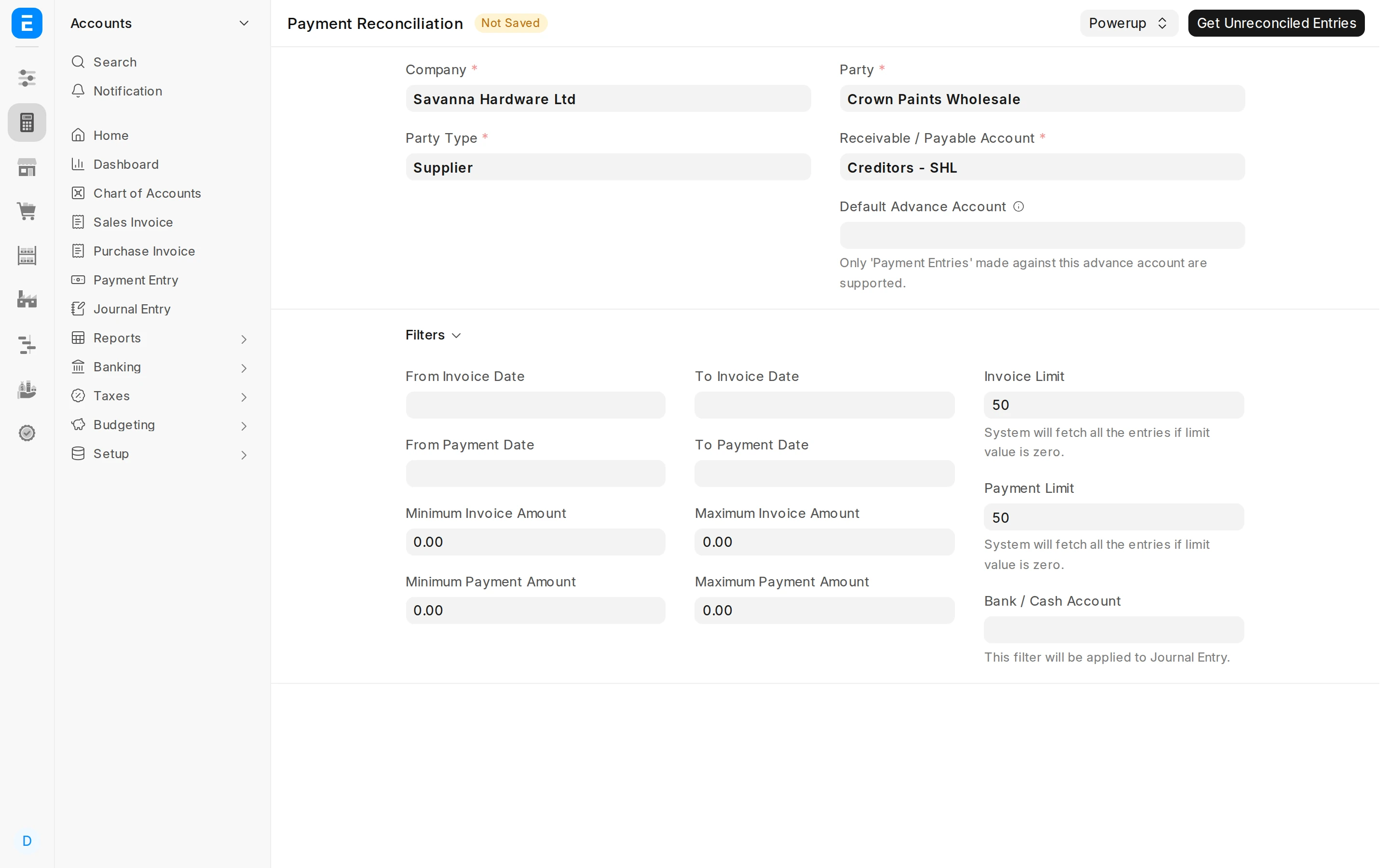
Step 1 of 9
Load the supplier's entries
In Payment Reconciliation, choose the company, Supplier as the party type and the supplier. This supplier has paid in advance and has three open invoices. Click Get Unreconciled Entries.
Arrow keys or space also move through the steps.
Steps
-
In Payment Reconciliation, choose the company, Supplier as the party type and the supplier. This supplier has paid in advance and has three open invoices. Click Get Unreconciled Entries.
-
The tables list the supplier's open invoices and unallocated payments. To fit this page, only the invoice number and outstanding amount, and the payment name and amount, are shown; the gear at the corner of a table chooses the columns. Tick the payment and the invoices to spread it over, then open the Powerup menu. The standard Allocate button would fill them oldest first; Zero Allocate leaves the amounts to you.
-
Zero Allocate is offered once both tables have entries. It makes one allocation row for every ticked payment and invoice pair, each at zero, and asks you to confirm. Zero Allocate with Paste, for suppliers, is used further on. The menu is there when Enable Payment Reconciliation Powerup is ticked in PowerPack Settings. Click Zero Allocate.
-
Each ticked invoice now has a row against the payment, with Allocated Amount at 0.00. Nothing is reconciled yet.
-
Type how much of the payment goes to each invoice. Here the first two invoices are paid in full and the third is left at zero, so it is skipped. Then open Powerup again.
-
Zero Reconcile is added to the menu once there are allocation rows. It reconciles the rows that have an amount and leaves out the ones at zero, after you confirm. Click it, then Yes.
-
A message says one zero-amount row was filtered out and the other two were reconciled. The first two invoices are paid from the payment, and the allocation, payment and invoice tables clear. What is left of the payment, and the third invoice, show up when the entries are loaded again.
-
For a supplier, Zero Allocate with Paste takes lines from the supplier's statement: a bill number and an amount, separated by a tab, a comma or spaces. Choose the credit to use, paste the lines and click Parse and Match. Each bill number is looked up among this supplier's invoices, and the review shows the credit available, what is allocated and what remains; the total cannot go over the credit.
-
Proceed adds a row for each matched invoice with the pasted amount filled in. Nothing is reconciled until Zero Reconcile is used, so the rows can still be changed.