ERPNext Walkthroughs Accounts
Match your bank statement to payments
Match each bank statement line to the payment already booked in ERPNext, and see it marked reconciled.
Step 1 of 12
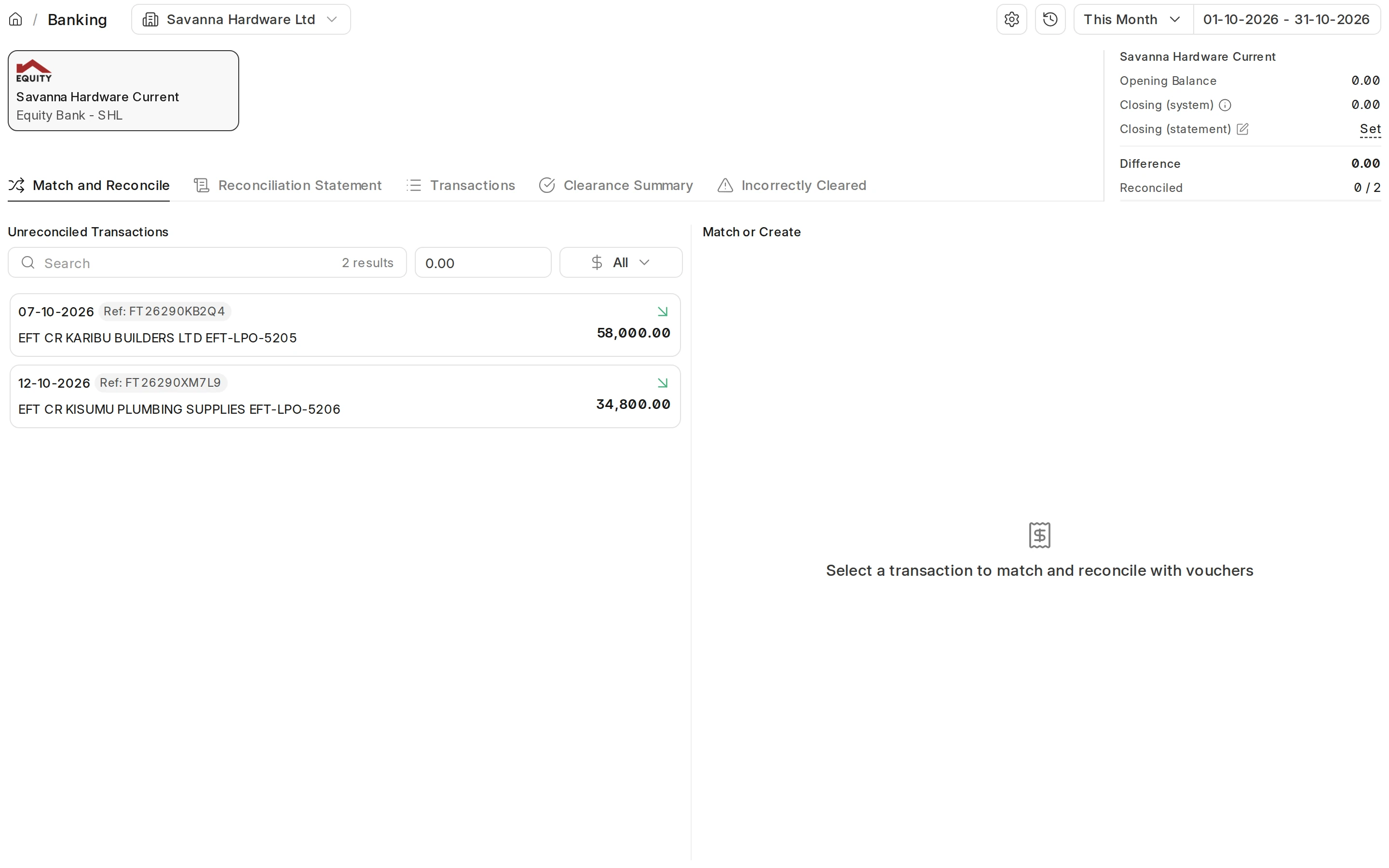
Open Banking and pick the bank account
Banking shows your company's bank accounts as cards. It opens on the only account, or on the one you used last or the default if you have several. Click a card to switch.
Arrow keys or space also move through the steps.
Steps
-
Banking shows your company's bank accounts as cards. It opens on the only account, or on the one you used last or the default if you have several. Click a card to switch.
-
Unreconciled Transactions lists the bank statement lines that still have an amount left to match, within the dates at the top.
-
The range at the top decides which lines are listed; widen it when your statement lines are older.
-
Click a line to see what it could match.
-
ERPNext lists the payments booked to this bank account that are not yet matched to a line, and marks what agrees with the line: the amount, the dates and the reference (Complete, Partial or No Match). When the first payment agrees with the line, it is flagged Suggested.
-
If the money has no payment in ERPNext yet, create it without leaving the line: Record Payment for a customer or supplier, Bank Entry for charges and other income or expenses, Transfer between your own accounts.
-
Click Reconcile on the payment that belongs to this line.
-
The matched line leaves the unreconciled list and the next line is selected for you.
-
The next line shows its own candidates. Reconcile the payment that agrees with it.
-
The Reconciled counter shows how many of the statement lines in the range are matched.
-
Open the Transactions tab.
-
Every statement line in the range is listed with its Status; the lines you just matched read Reconciled.