Power-user features
Switch price list and store, price one item from every list with the star key, and sell quickly with the keyboard shortcuts.
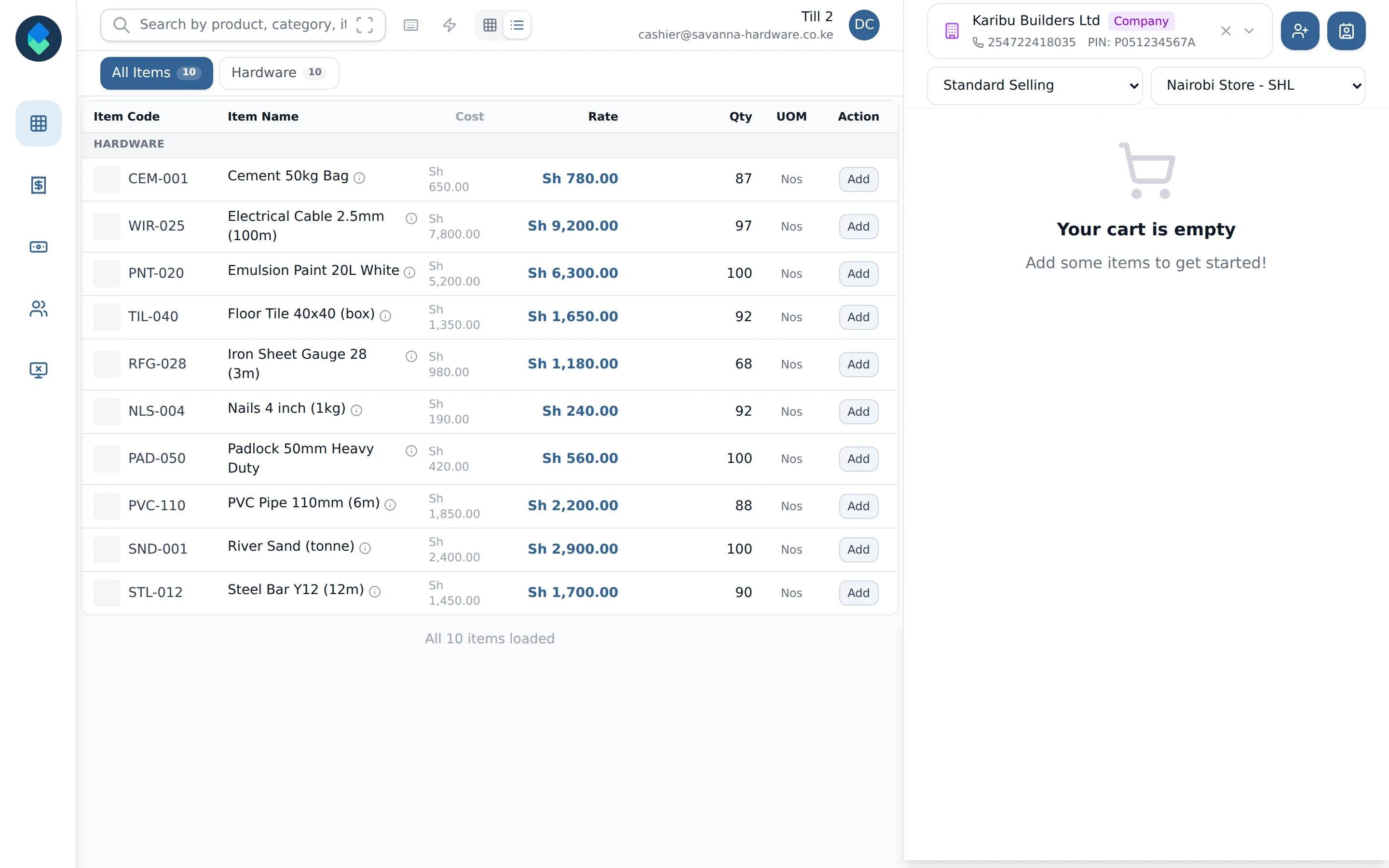
Step 1 of 14
Two pickers under the customer
Under the customer box are two drop-downs. The first is the price list the sale is priced from, the second is the warehouse the stock is taken from. They show when your till allows them.
Arrow keys or space also move through the steps.
Steps
-
Under the customer box are two drop-downs. The first is the price list the sale is priced from, the second is the warehouse the stock is taken from. They show when your till allows them.
-
Open the second drop-down and pick another store, here Mombasa. The item list reloads with that store's stock. You can only change store while the cart is empty, so do it before you add anything.
-
The Qty column on each row is the stock on hand in the store you picked. The count changes when you pick a different store.
-
Press F3 from anywhere to put the cursor in the search box, then type part of an item name.
-
Press the down arrow to move from the search box onto the first item. Each press of + adds one to the cart.
-
With the item still selected, - takes one off the cart line. The quantity shows in the cart on the right.
-
Choose Wholesale in the price list drop-down. The cart is priced again from that list, so the price of the item changes.
-
The cart line now shows the Wholesale price. Switching the price list re-prices what is already in the cart.
-
Select an item in the list and press * to see its price on each price list, plus a custom price.
-
Move with the up and down arrows and press Enter to add the item at the highlighted price. Esc closes the list without adding anything.
-
Press ? when the cursor is not in a box to open the shortcut list. Press ? or Esc again to close it.
-
Shortcuts are grouped by Search, Product List and Order. The Order group includes F2 for the customer box and F10 for checkout.
-
With items in the cart, press F10 to go straight to payment, instead of clicking Checkout.
-
The payment screen opens. Nothing is sold until you finish the payment, and this guide stops here.