ERPNext Walkthroughs Selling
Field Sales: territories from pins, and duplicate shops
Set each shop's territory from where it is pinned, and find shops that were added twice so you can merge them into one customer.
Step 1 of 7
Territory suggestions
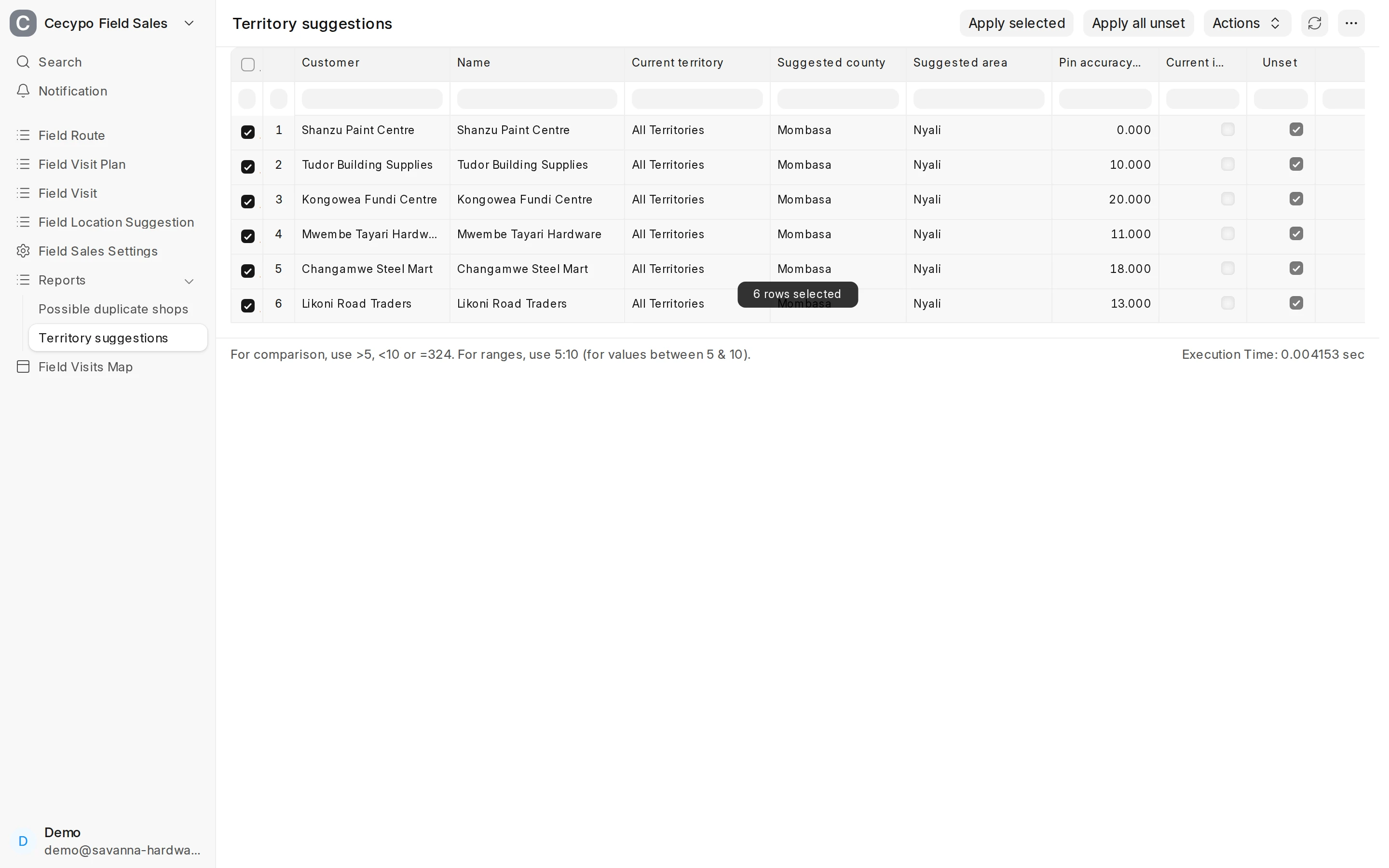
Territory suggestions lists pinned shops whose pin lies in a different area from their territory, with the county and area the pin falls in. Shops that have no territory yet come ticked.
Arrow keys or space also move through the steps.
Steps
-
Territory suggestions lists pinned shops whose pin lies in a different area from their territory, with the county and area the pin falls in. Shops that have no territory yet come ticked.
-
Tick the shops to fix and press Apply selected. Apply all unset does every shop that has no territory in one go.
-
A message counts the shops done. The shop now has the area its pin is in as its territory and drops off the list.
-
A shop added with the same phone as another, or with a similar name pinned within 100 m of one, is flagged. Possible duplicate shops lists each one beside the shop it may duplicate, with the distance between their pins.
-
Tick the shop and press Open to merge. (Not a duplicate clears the flag instead.)
-
The shop opens, with a note on how to merge it. Click the pencil above the shop's name, at the top right, to rename it.
-
Enter the other shop's name in New Name, tick Merge with existing and press Rename. Its visits, invoices and payments then belong to the one customer.