Getting around KLiK POS
Open or join a shift, find invoices, copy a held order to send to a customer, and see where a shift is closed.
Step 1 of 14
Pick your till
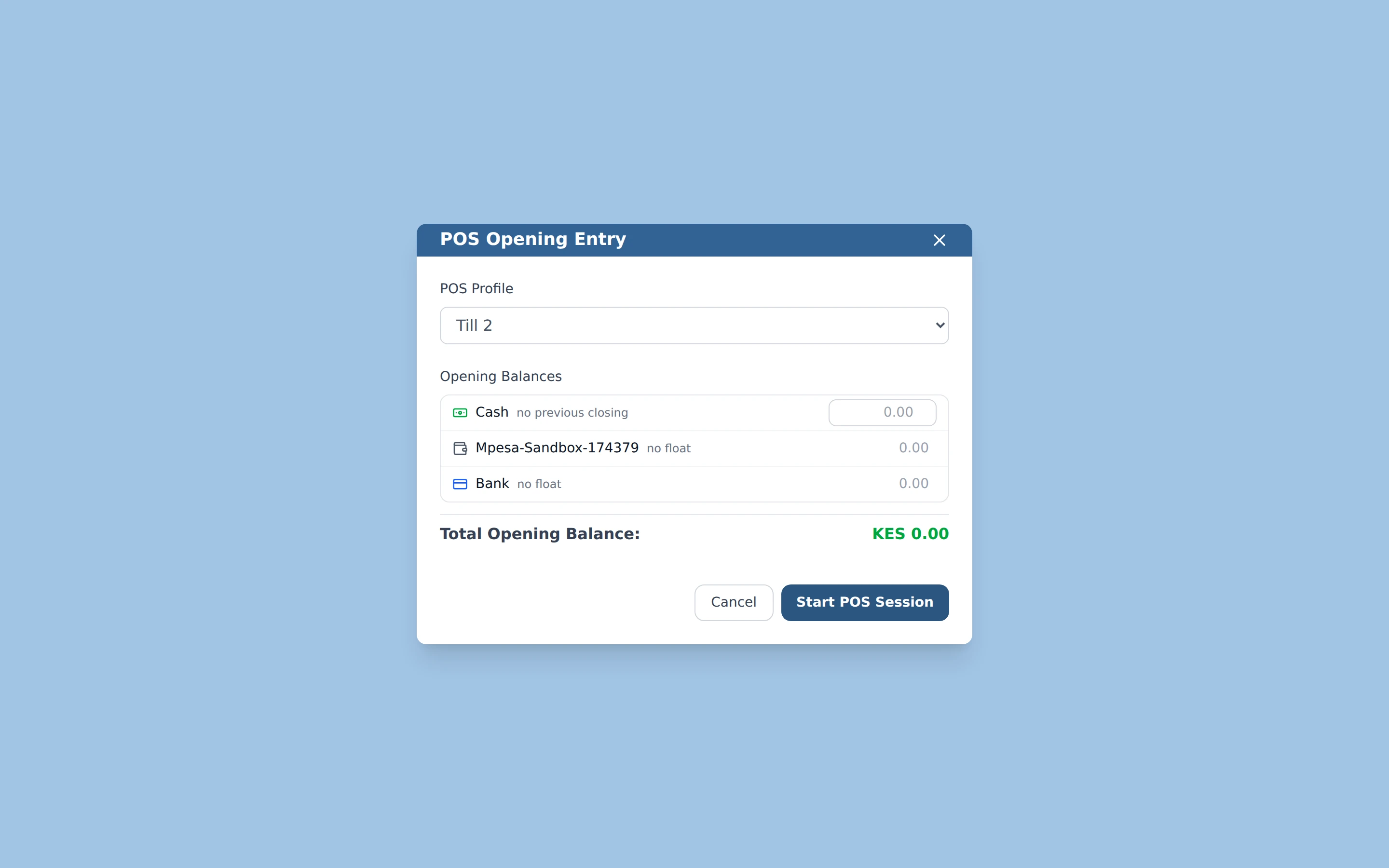
KLiK POS asks which till you are working on. The POS Profile list shows the tills you may use. Till 2 is chosen here and has no shift open yet, so you can start one.
Arrow keys or space also move through the steps.
Steps
-
KLiK POS asks which till you are working on. The POS Profile list shows the tills you may use. Till 2 is chosen here and has no shift open yet, so you can start one.
-
Now choose Till 1 in the POS Profile list. A colleague already has a shift open on it, so KLiK offers Join shift: click it to sell in that shift instead of opening a second one.
-
Back on Till 2, type the cash you are starting with in the Cash box. Cash, M-Pesa and Bank are separate lines.
-
Click Start POS Session. Your shift is open and you can start selling.
-
The left bar has one icon per screen. The receipt icon, the second under the logo, opens Invoice History: every sale on this till.
-
Type an invoice number, a customer or an amount into Search invoices.... Filter customer... next to it narrows the list to one customer.
-
Set a From date and a To date to list the sales in that range; here it is the last 30 days. The Today and Yesterday buttons jump to one day.
-
Click View on a row to open the invoice and see its items, payments and totals.
-
The invoice page shows what was sold, how it was paid and the totals. The clipboard icon at the top right is Copy Order: it copies the invoice as text, ready to paste into WhatsApp or an email.
-
The Held tab lists orders a cashier put aside without taking payment.
-
On a held order, the two-sheets icon is Copy as message: a ready-to-send text for WhatsApp or email. The picture icon next to it is Copy as image: the order as a picture.
-
KLiK confirms the copy. Paste it into WhatsApp or an email, and the customer gets the quote.
-
When you finish, click the screen icon with an X, last in the left bar. It opens Closing Shift.
-
Close Shift at the top right opens this box. Enter what you counted for each payment mode; KLiK shows the difference from what it expected. Confirming ends the shift for everyone on this till; Cancel keeps selling.