Selling with M-Pesa
Add a new customer with an LPO number, build a cart, then take payment by an M-Pesa STK push or by matching a payment already received.
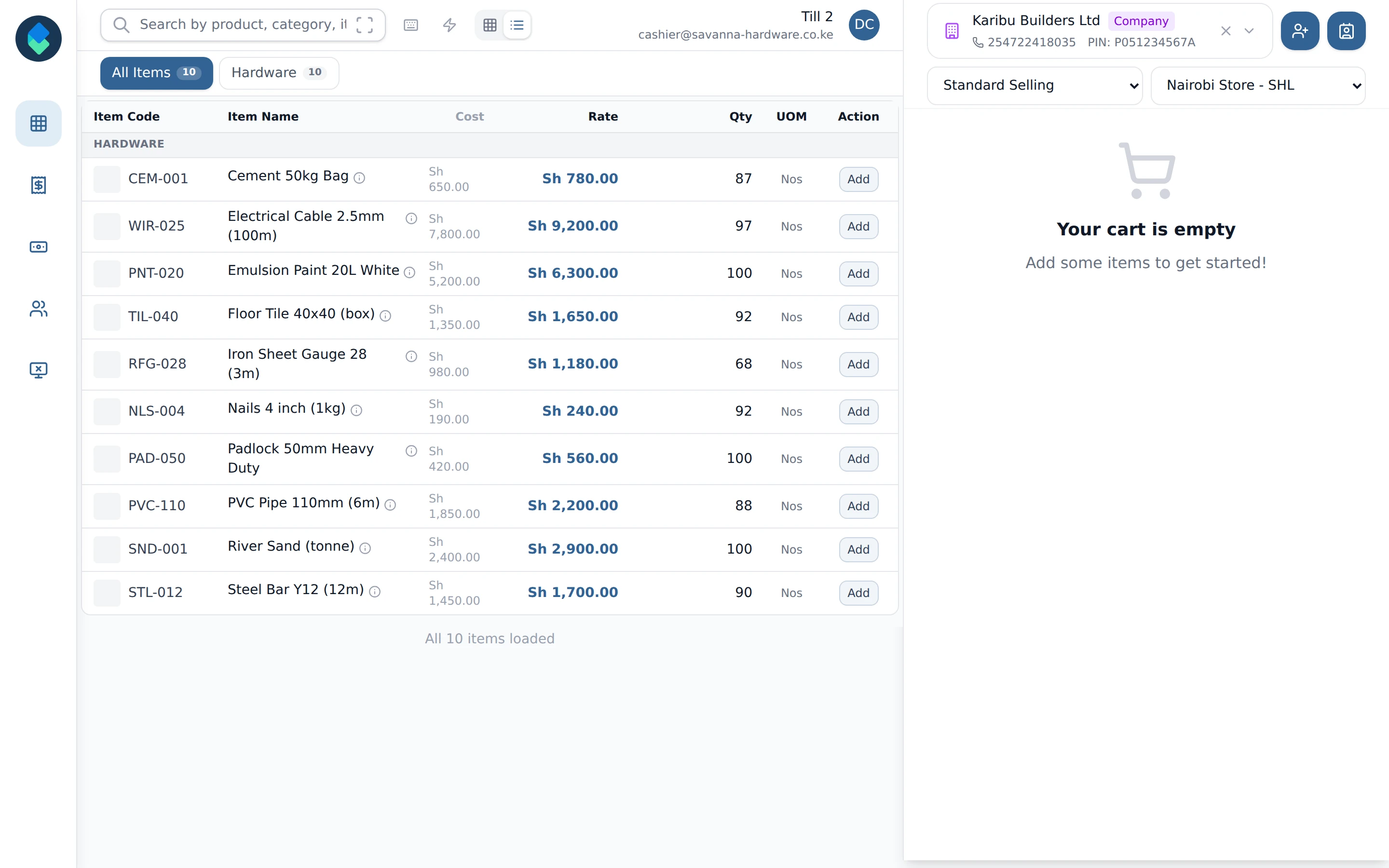
Step 1 of 14
Add a new customer
A shift is open on Till 2 and the cart is empty. Click the Add New Customer icon, the person with a plus next to the customer name, to register a customer who is not on the list yet.
Arrow keys or space also move through the steps.
Steps
-
A shift is open on Till 2 and the cart is empty. Click the Add New Customer icon, the person with a plus next to the customer name, to register a customer who is not on the list yet.
-
Choose Company for a business, then type the Customer Name and the Contact Name of the person you deal with. Add an email or phone number, and an address: a street, a city and the country.
-
Click Save Customer. The new customer is put on the cart straight away, so the sale is already theirs.
-
Next to Add New Customer is Additional Info, for details that belong to this sale only. Click it, or press F4 at any time.
-
Type the number from the customer's purchase order into Customer's Purchase Order, then click Save. It stays with this sale. Name, Tax ID and Phone come from the customer record and cannot be changed here.
-
Click an item to put it in the cart, and again for more of the same. The LPO number now shows under the customer's name. The cart total here is 3,760 before tax; 16% tax is added at checkout.
-
Click Checkout to take payment.
-
Under Payment Methods, click the round button beside Mpesa-Sandbox-174379. KLiK moves the amount to collect from Cash to M-Pesa (4,362 with tax) and opens the M-Pesa options.
-
Type the customer's phone number, in the form 254712345678, and click Send. The customer gets a prompt on their phone to enter their M-Pesa PIN.
-
The button now says Waiting.... KLiK is waiting for the customer to approve on their phone. Until it finishes you cannot send another push from here, and received (C2B) payments cannot be added to this sale.
-
A sale uses either a push or received payments, not both, and there is no button to cancel a push. Use received payments only once the push has ended: the customer cancelled it, it expired, or Check with M-Pesa, which appears after about 20 seconds, says it was not paid. If the customer then says they paid by Paybill or Till, click Back to cart and open Checkout and M-Pesa again. KLiK keeps the order under Held orders and shows a warning. Type at least three characters of the sender's name, phone number or M-Pesa code into Reconcile Received C2B Payments.
-
Tick the entry that matches. It shows who paid, the M-Pesa code, the phone number and how much money is left on it. Selected total adds up what you ticked.
-
Click Add Selected Payments to use the payment for this sale.
-
KLiK confirms the payment is on the sale and shows how much was used and how much stays on the entry for later. The sale is not finished until you click Submit.