ERPNext Walkthroughs Accounts
Withholding on a supplier deposit
Pay a supplier a deposit against a Purchase Order with Kenya withholding worked out, then see it follow the Purchase Invoice to KRA, or release it when no invoice will come.
Step 1 of 18
Start the deposit
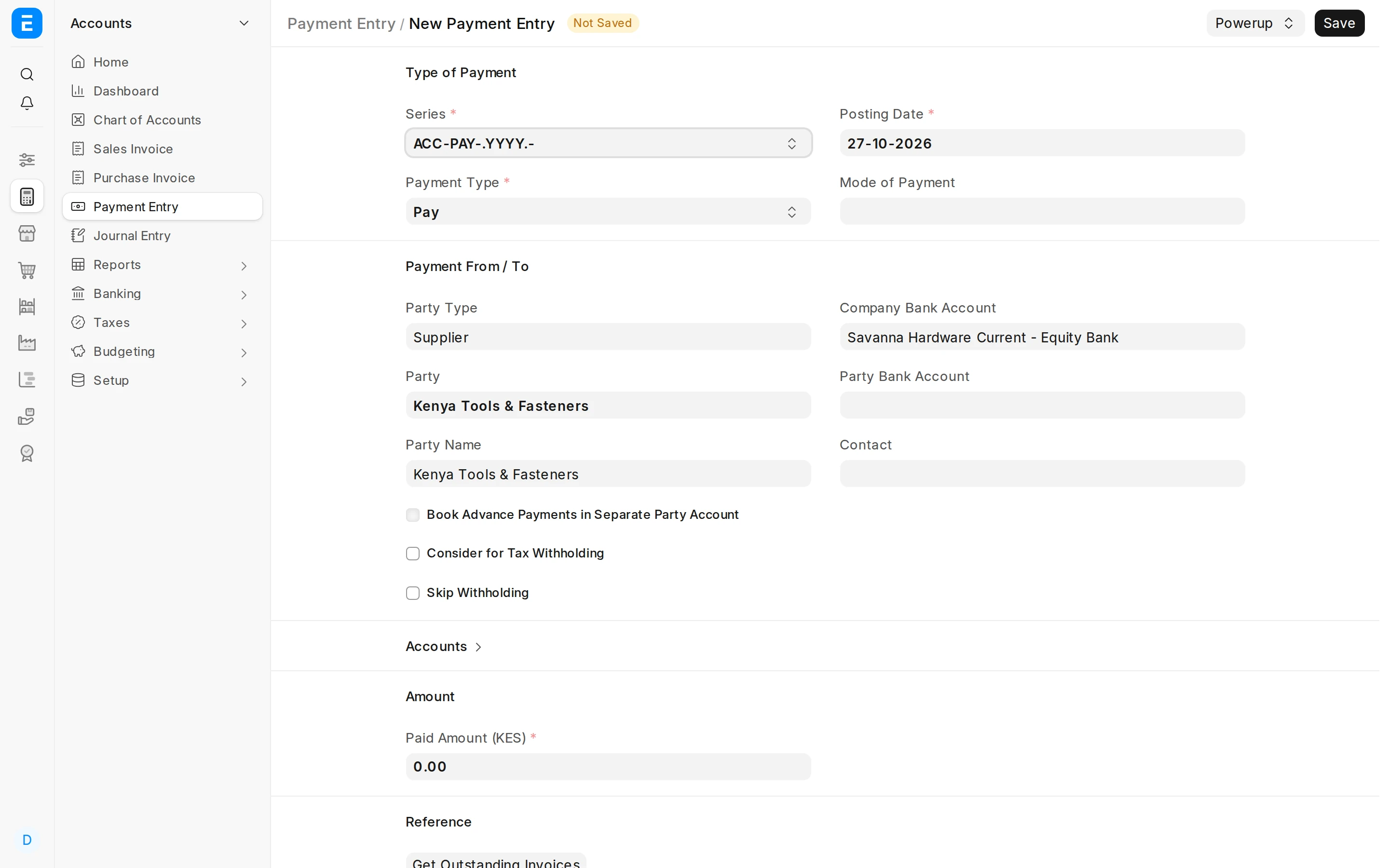
A supplier asks for a deposit before delivering. New Payment Entry: Payment Type Pay, Party Type Supplier, the supplier and the bank you pay from.
Arrow keys or space also move through the steps.
Steps
-
A supplier asks for a deposit before delivering. New Payment Entry: Payment Type Pay, Party Type Supplier, the supplier and the bank you pay from.
-
The deposit is against an order, not an invoice. Click Get Outstanding Orders to list the supplier's Purchase Orders.
-
The Purchase Order comes in at its full amount. Lower Allocated Amount to the deposit you are paying, here about half.
-
Withholding Details: one row for the order, with the base, the rate and the amount. The row carries the Purchase Order and no invoice, because there is no invoice yet.
-
The bank pays the deposit less the withholding. Withheld sits beside Paid Amount.
-
Save, then Submit. The supplier gets the deposit net of withholding, and the withheld amount is due to KRA.
-
Report Withholding Due to KRA. The deposit row shows its Purchase Order and Awaiting invoice: KRA is filed against invoices, so it cannot be paid yet. The report has more columns than shown here.
-
Tick the deposit row and click Issue Payment.
-
The report refuses and tells you to set the deposit against the Purchase Invoice first. Nothing is paid.
-
When the goods are delivered, make the Purchase Invoice from the Purchase Order and enter the supplier's bill number and date.
-
On the Payments tab, open Advance Payments and click Get Advances Paid. The deposit paid against this order is listed.
-
The deposit paid against the order is now allocated to this invoice.
-
Save, then Submit the Purchase Invoice.
-
Back in the report, the deposit row has the invoice and the supplier's bill number. It is ready for the iTax CSV and Issue Payment like any other row.
-
Another supplier's order was cancelled after the deposit. Its row will wait for ever. Tick it and click Release Withholding.
-
Choose the Posting Date and give a Reason, then Release. The withholding is handed back to the supplier instead of being filed with KRA.
-
Release posts one Journal Entry: it debits the withholding account and credits the supplier.
-
Filter Status to Released: the row is there with the Journal Entry that released it, and it is out of the amounts owed to KRA.