ERPNext Walkthroughs Selling
Field Sales: add a new shop from its sign
Add a shop on the phone: photograph its sign to fill in the name, phone and address, and pin it where you stand or leave the pin for the first visit.
Step 1 of 4
Add a shop
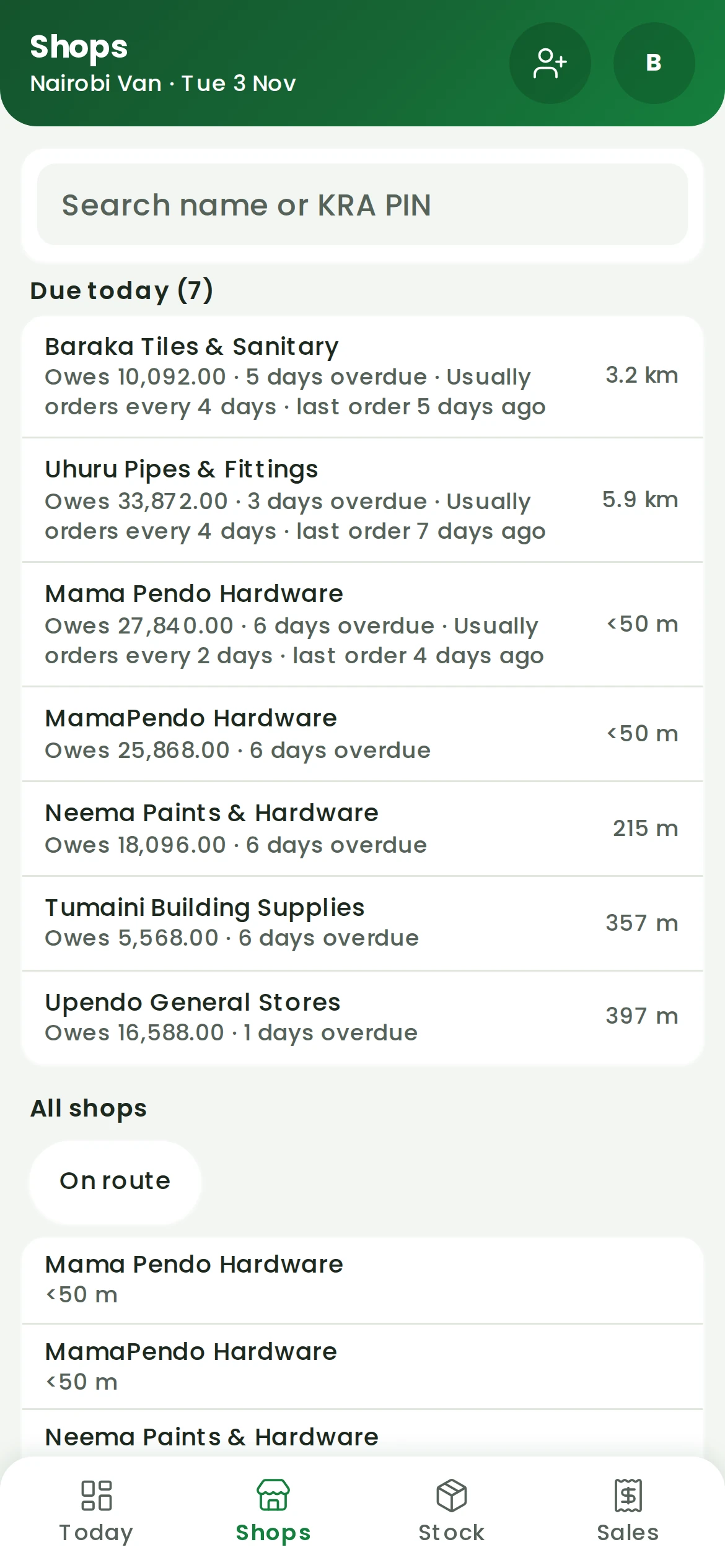
Once the day is started, Shops has a person-with-a-plus button at the top. Tap it to add a shop the van has not sold to before.
Arrow keys or space also move through the steps.
Steps
-
Once the day is started, Shops has a person-with-a-plus button at the top. Tap it to add a shop the van has not sold to before.
-
Tap the camera button at the top of the form and photograph the shop sign. The name, phone and address are read off the sign and filled in, each marked from photo. Check them before saving. (Sign reading is an option the office turns on.)
-
KRA PIN is optional. The shop is pinned where the phone stands, and the line under the tick box shows how accurate the location is. Not at the shop? Tick Don't pin here and it is pinned at the first check-in. Then press Save shop.
-
The shop joins the list, ready for a visit. If it looks like a shop that is already there, a second message says so and the office checks it.