ERPNext Walkthroughs Selling
Minimum Selling Price: a floor under every sale
Set a floor for selling prices as a percentage above cost, see a sale below it refused, and see how a price approval request is sent to the person who may allow it.
Step 1 of 10
Switch on the floor
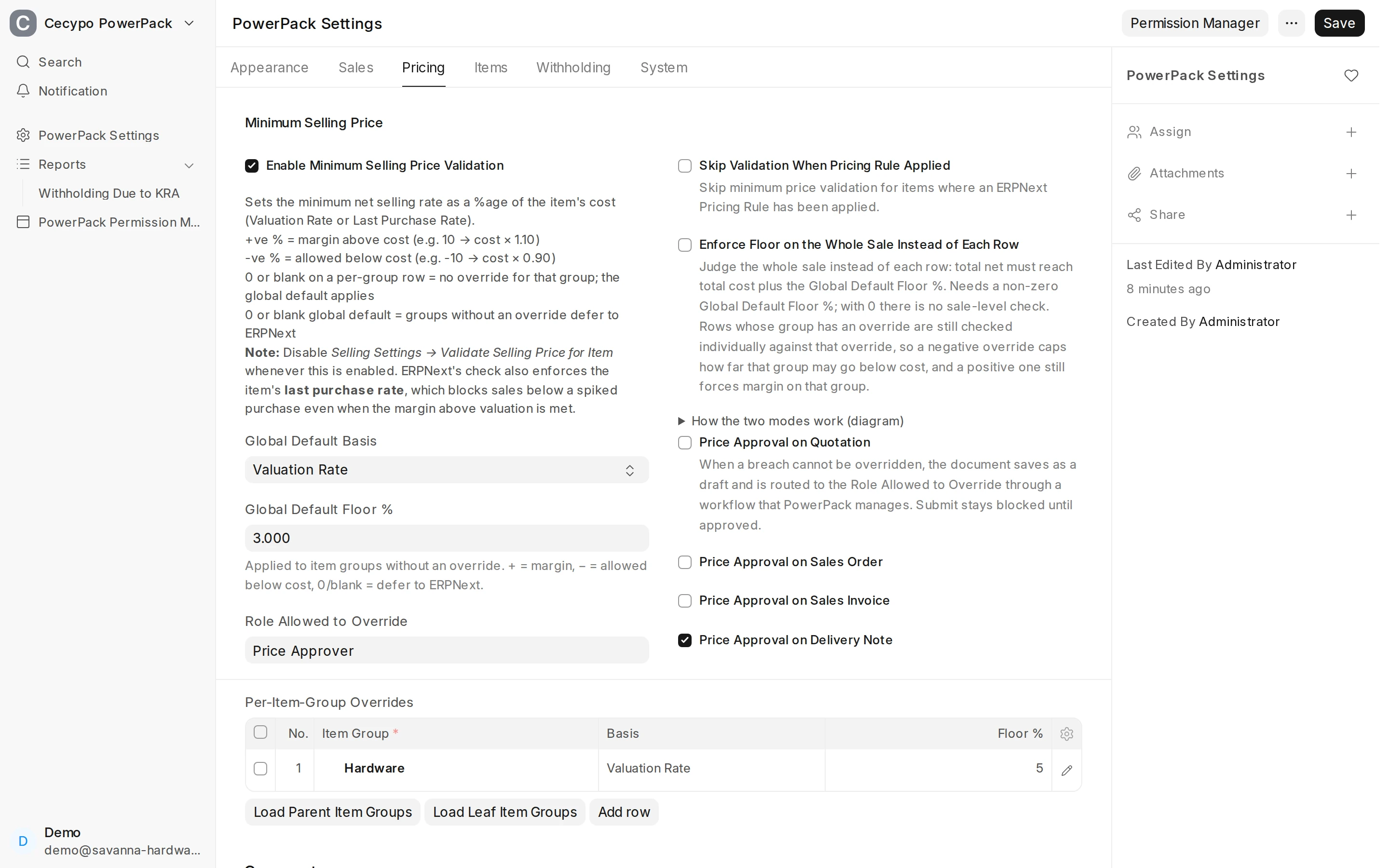
On the Pricing tab of PowerPack Settings, tick Enable Minimum Selling Price Validation. The floor is the item's cost plus a percentage: Global Default Basis says whether cost means the valuation rate or the last purchase rate, and Global Default Floor % is the margin above it. A minus figure lets you sell below cost; blank or 0 leaves the group to ERPNext's own check. Users with the Role Allowed to Override may go below the floor.
Arrow keys or space also move through the steps.
Steps
-
On the Pricing tab of PowerPack Settings, tick Enable Minimum Selling Price Validation. The floor is the item's cost plus a percentage: Global Default Basis says whether cost means the valuation rate or the last purchase rate, and Global Default Floor % is the margin above it. A minus figure lets you sell below cost; blank or 0 leaves the group to ERPNext's own check. Users with the Role Allowed to Override may go below the floor.
-
A row in Per-Item-Group Overrides sets the basis and floor percentage for one item group. It wins over the global default for that group and the groups under it. Here Hardware must stay 5% above cost, and every other group falls back to the global default.
-
The Price Approval on boxes decide what happens to a sale that is below the floor. Left off, it is refused. Ticked, it saves as a draft and is routed to the Role Allowed to Override, which becomes the approver role, through a workflow that PowerPack creates and keeps. Here it is on for Delivery Note only.
-
On this Quotation the Rate of the iron sheet row has been lowered below the floor for its group, and price approval is not on for Quotation. Click Save.
-
Saving stops with a message naming the row and the least net selling rate allowed. It names the floor only, not the cost or the percentage behind it. The rate checked is the net rate after any discount, and the same check runs on Sales Order, Sales Invoice, POS Invoice and Delivery Note.
-
On a Delivery Note, where price approval is on, the rate of the paint row is also below its floor. Click Save.
-
This time the note saves as a draft and a message says the row is below the minimum selling price and to use Request Price Approval before submitting. The note cannot be submitted until an approval covers every row below the floor. Open the Actions menu.
-
Request Price Approval is on the menu only while a row is below the floor. Click it.
-
The note is now Price Approval Pending and the form is locked, so the rates cannot be changed while the approver looks at it; the server refuses edits too, unless you hold the approver role. The workflow is set to email the people who can act on it.
-
The workflow is listed under Workflow, one per document type. In Transitions, only the approver role can Approve or Reject, and not its own requests. Approve moves the note to Price Approved and Reject back to Draft. Once approved, it can be submitted, or sent back with Withdraw Approval. The approval covers the rates and quantities as approved: a lower rate or a higher quantity afterwards is refused on save.