ERPNext Walkthroughs Selling
See stock, cost and margin while you quote
Add items to a quotation and see stock, cost, recent prices and the margin under every row, without leaving the form.
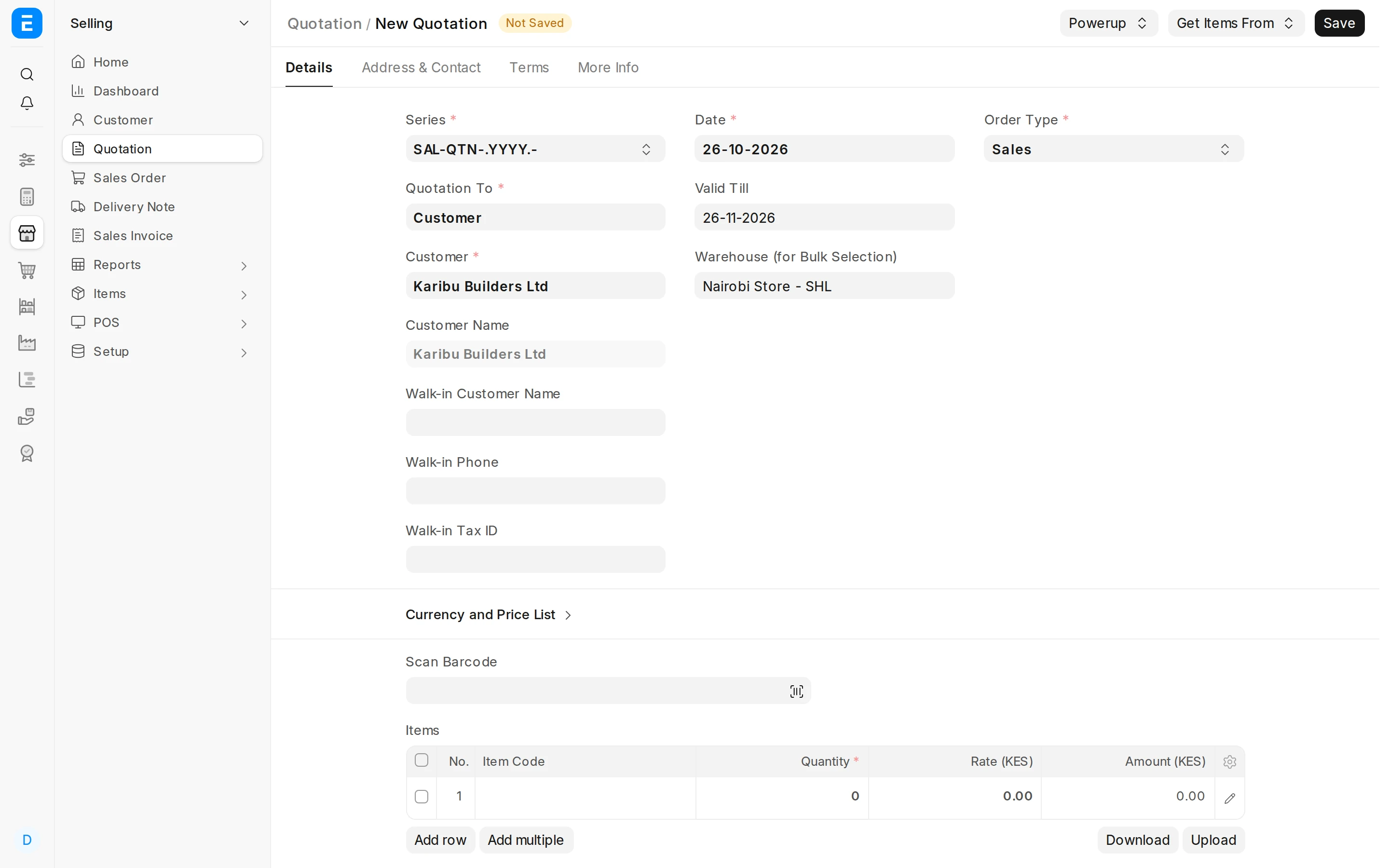
Step 1 of 8
Start a quotation
Open a new Quotation, choose the customer and the warehouse the stock should come from.
Arrow keys or space also move through the steps.
Steps
-
Open a new Quotation, choose the customer and the warehouse the stock should come from.
-
Add items and quantities to the Items table, as on any quotation.
-
Under each item PowerPack adds a line of insights: stock, cost, the last purchase and sale prices and a margin badge. The cost and margin only show to users with the role set in PowerPack Settings.
-
Stock shows the row's warehouse: Phy is what is physically there, and Avl is the projected available quantity, after reservations and incoming orders.
-
Cost is the item's valuation rate, and the coloured badge is the margin on this row's price. You can hover the badge to see the working.
-
Last Sale is the latest price the item sold at, and Last Sold to Customer the latest price this customer paid, so you can quote in line with them. The date of each sale is beside it.
-
Next to the Items label, a summary adds up cost, net sale, profit, margin and markup for the whole quotation.
-
Open Powerup: Hide Item Insights (or Show) turns the lines off and on, and Help opens this guide. Nothing here changes the quotation.