ERPNext Walkthroughs Reports
Sales Report Enhanced: every sale and how it was paid
See each sales invoice with what was paid in cash, M-Pesa or bank side by side, the totals per payment mode and what is still owed, with the Sales Report Enhanced report.
Step 1 of 6
Open the report
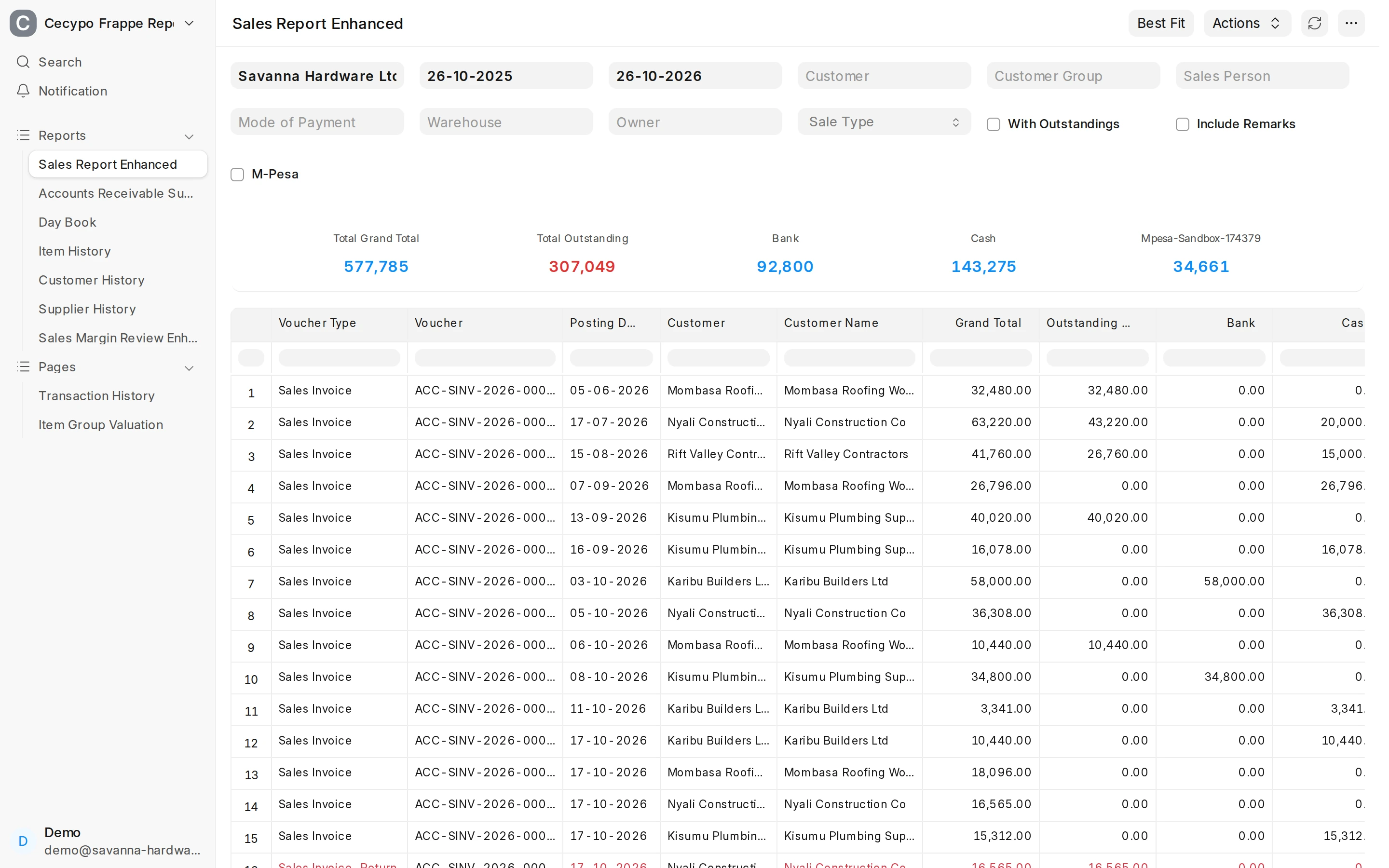
Open the report Sales Report Enhanced. Choose the Company and a From Date and To Date; both default to today (here the From Date is a year back, to show more sales). It lists every submitted sales invoice and return in that range.
Arrow keys or space also move through the steps.
Steps
-
Open the report Sales Report Enhanced. Choose the Company and a From Date and To Date; both default to today (here the From Date is a year back, to show more sales). It lists every submitted sales invoice and return in that range.
-
Narrow the list to one Customer, Customer Group, Sales Person, Mode of Payment, Warehouse or the user who made the invoice (Owner). Tick With Outstandings to keep only invoices that still have money owed on them.
-
Every mode of payment used in the period gets its own column, so you see what each invoice brought in by cash, M-Pesa or bank. Payments at the till and Payment Entries made later both count. The real table is wider: two columns are hidden here to fit the picture.
-
The cards at the top add it all up: the grand total, the total still outstanding, and the total taken in each mode of payment. They make cashing up against the bank and M-Pesa statements quick.
-
A return (credit note) is shown in red, so money given back stands out from the sales.
-
Tick M-Pesa to add an M-Pesa Trans ID column: the Safaricom receipt number behind each invoice paid by M-Pesa, ready to match against the M-Pesa statement. More columns are hidden here to fit the picture.